How to Customize a Necktie's Flag Pattern
Alter the Tie Pattern to Your Taste
Personalizing your necktie is easier than it looks. In this step-by-step guide, I’ll walk you through how to resize and rotate the repeating flag pattern on your necktie using Zazzle’s online designer. The example shown in the video uses the Brazil flag pattern tie, but the exact same steps work for all 200+ countries in this collection (and most other collections as well).
This tutorial documents every action and click, so you’ll see a lot of screenshots below. Don’t be intimidated — in real time, the process only takes a few minutes (as you can see in the video above).
At the bottom of this page, you’ll also find a downloadable PDF you can save or print for quick reference.
If you’d rather skip straight to browsing ties, you can head back to the MyTies.net homepage, where you’ll find our complete directory of countries and links to other collections.
Click to enlarge screenshots
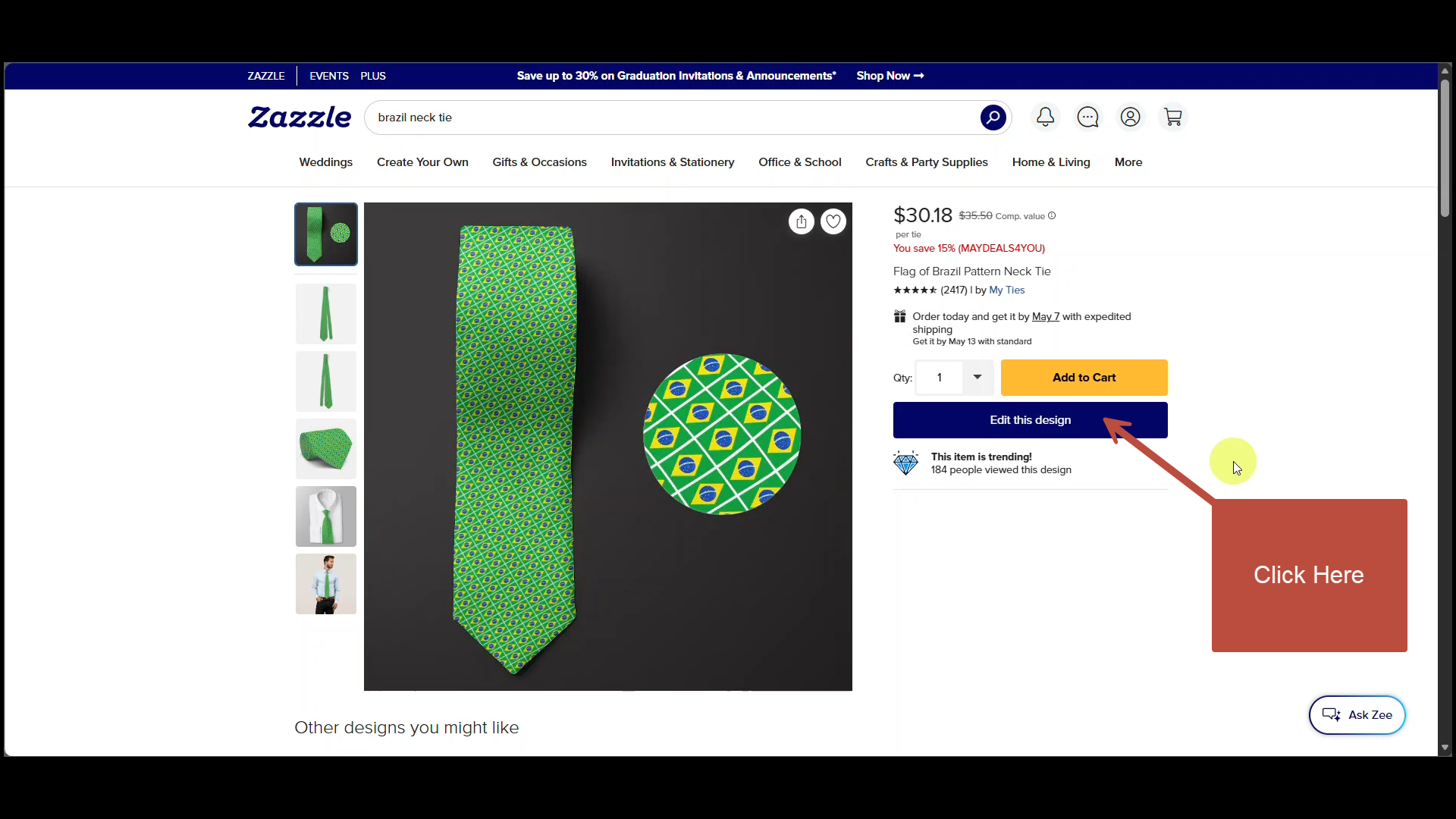
Open Your Necktie in the Zazzle Designer
From the product page of your chosen country’s flag tie, click “Edit this design” to launch the Zazzle designer.
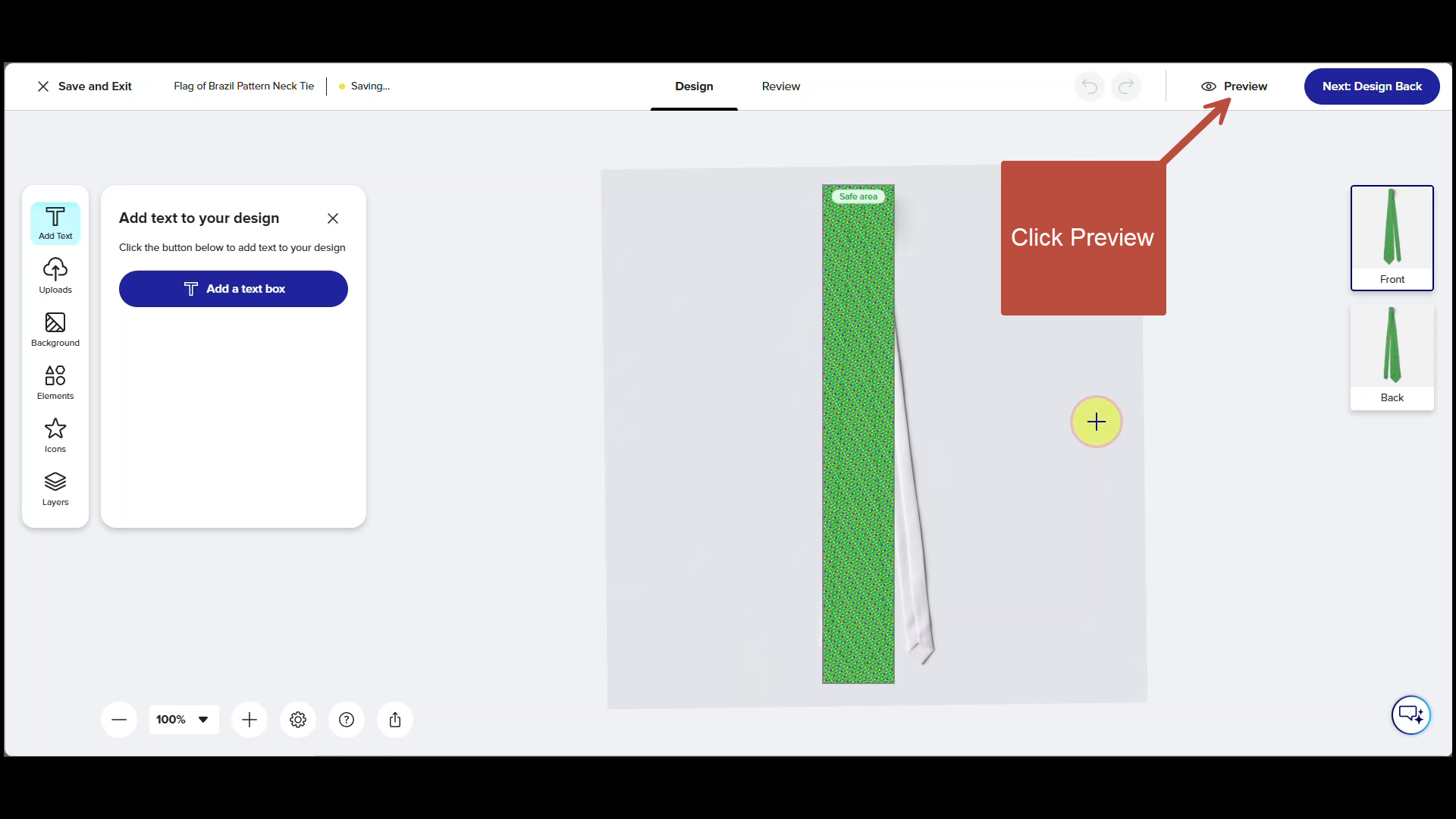
Open the Preview Window
Click the preview option to see how the tie looks before making any edits.
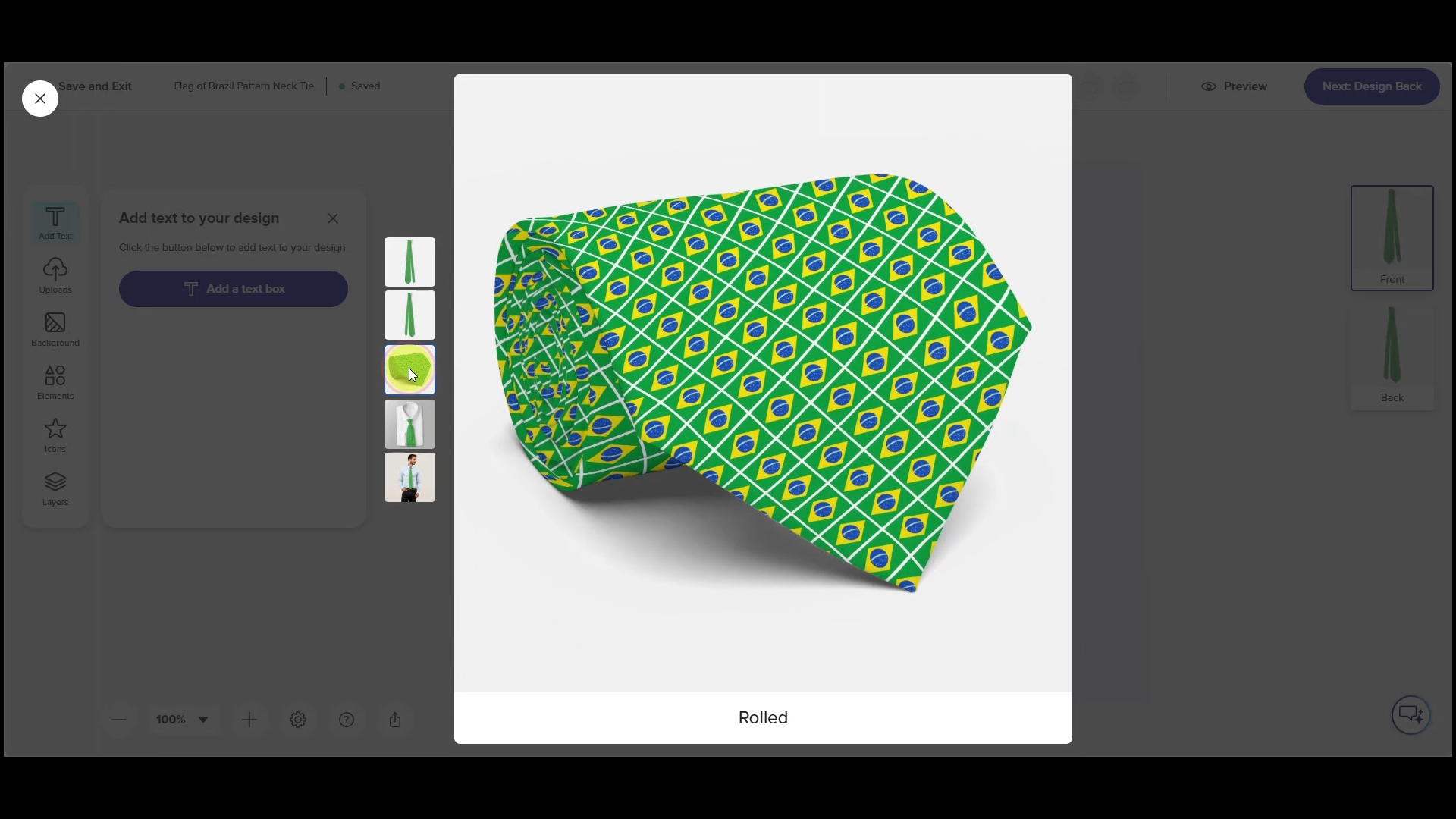
Familiarize Yourself with the Pattern
Try the various preview modes to see your design from different angles. When you’re finished previewing, click the X in the top-left corner to close the preview window and go back to the art board.
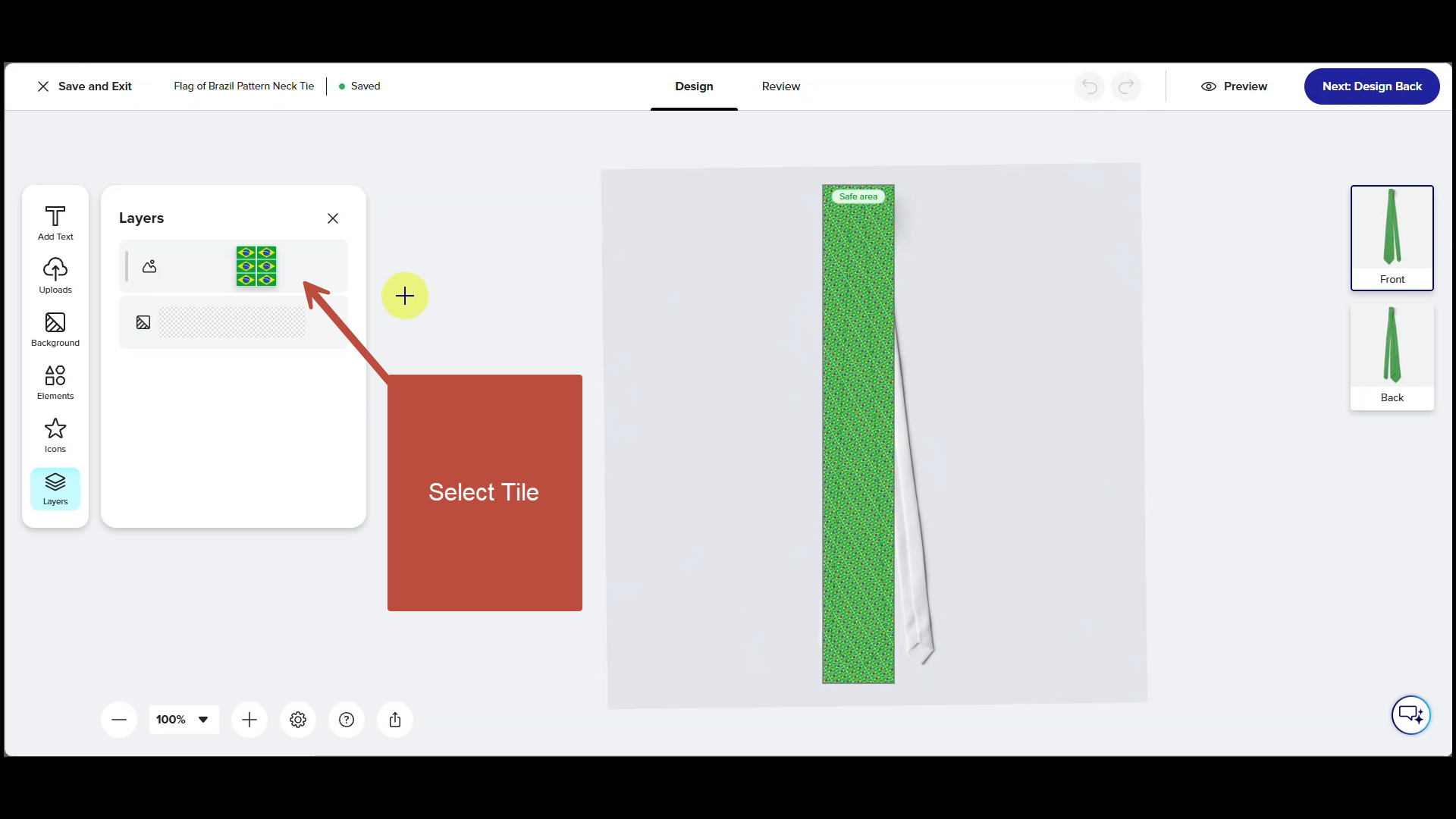
Return to the Art Board
If the tile isn’t selected, click the Layers panel on the right-hand side of the screen and select the pattern tile. It will then be selected on the art board as well.
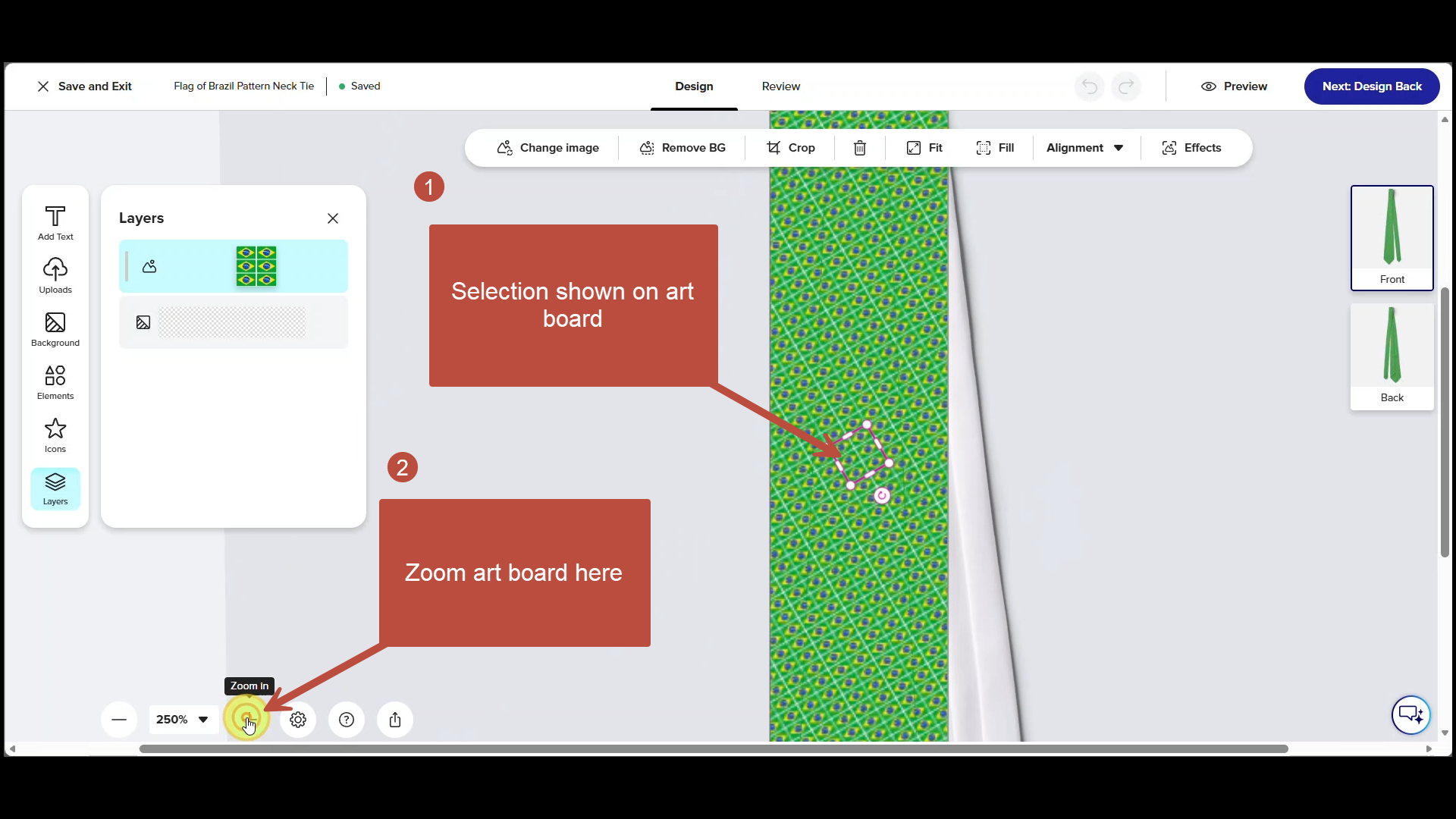
Zoom in on art board
Once the pattern tile is selected, you can zoom in on it by clicking on the plus symbol using the controller at the bottom left of the screen.
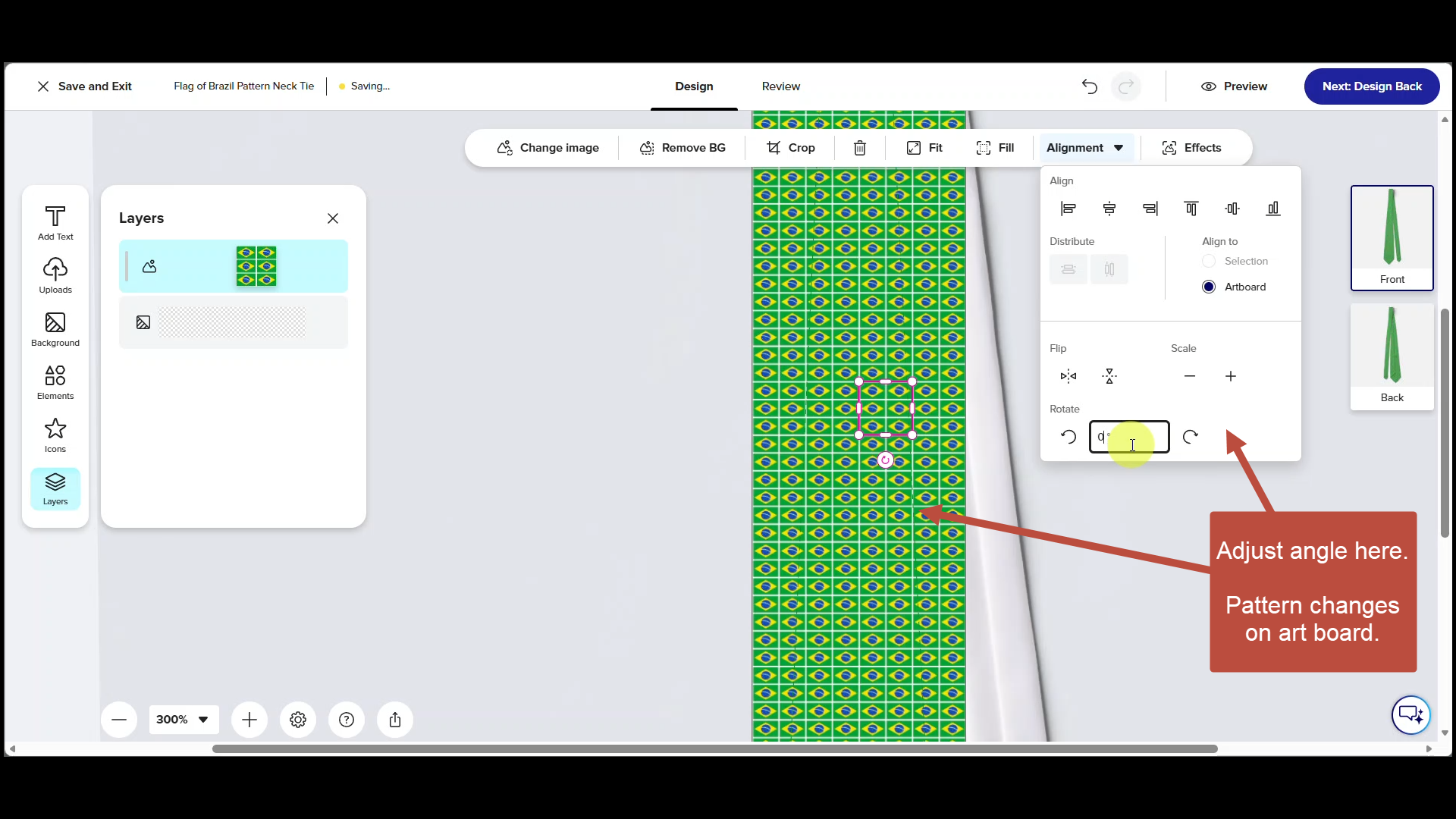
Alter angle of the pattern
With the pattern tile selected on the artboard, select Alignment in the context menu above the artboard. At the bottom of the pull down menu, enter 0 in the Rotate box. Note that the pattern has shifted on the art board and that the flags are now in a horizontal row.

Preview
Click Preview at the top of the screen to review your work.
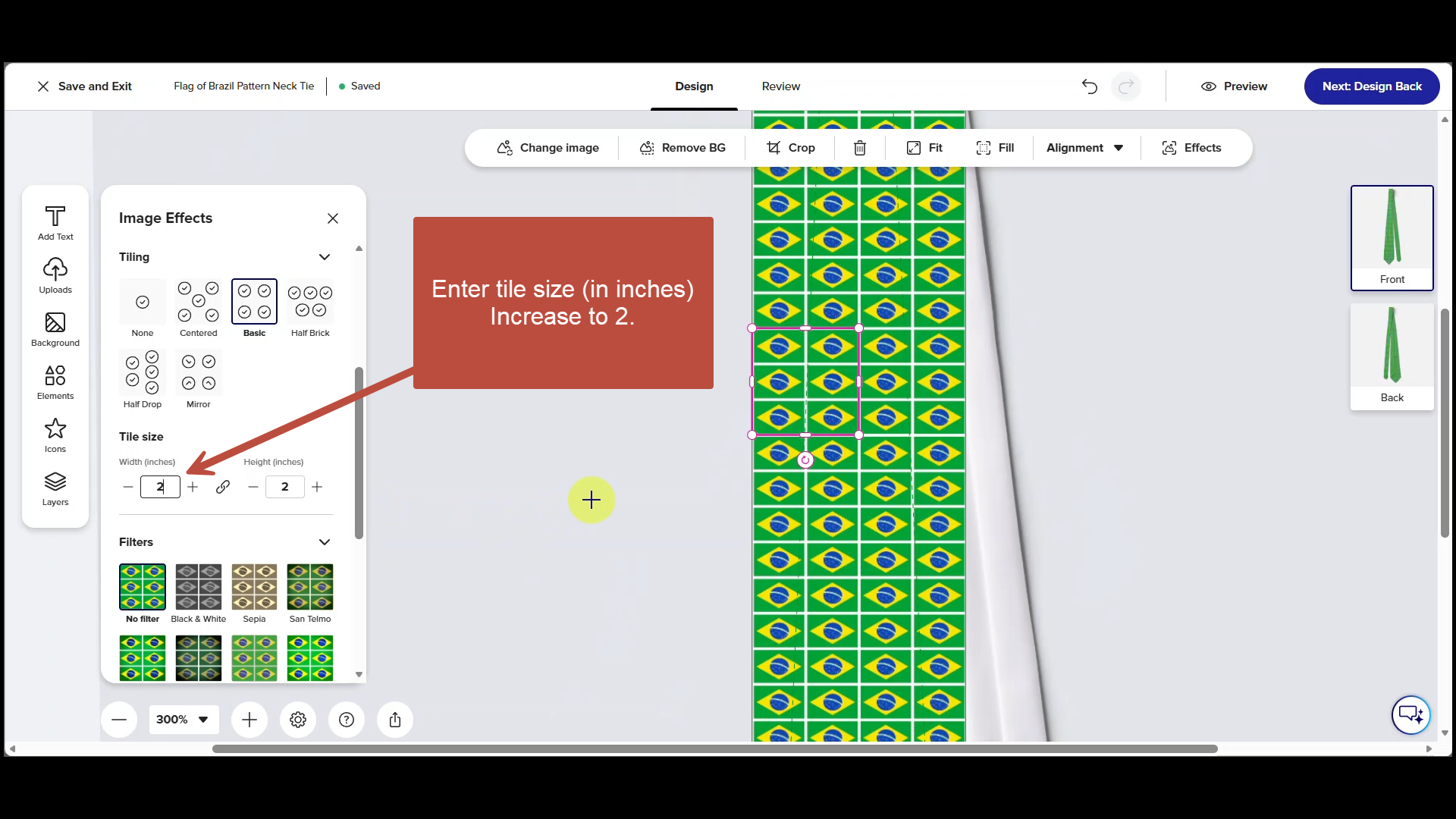
Increase size of the flags
With the pattern tile still selected, click on Effects in the context menu. The Image Effects menu will appear in the left side panel. In that panel change the tile size to 2 (inches). Note that the flag sizes have increased on the artboard.
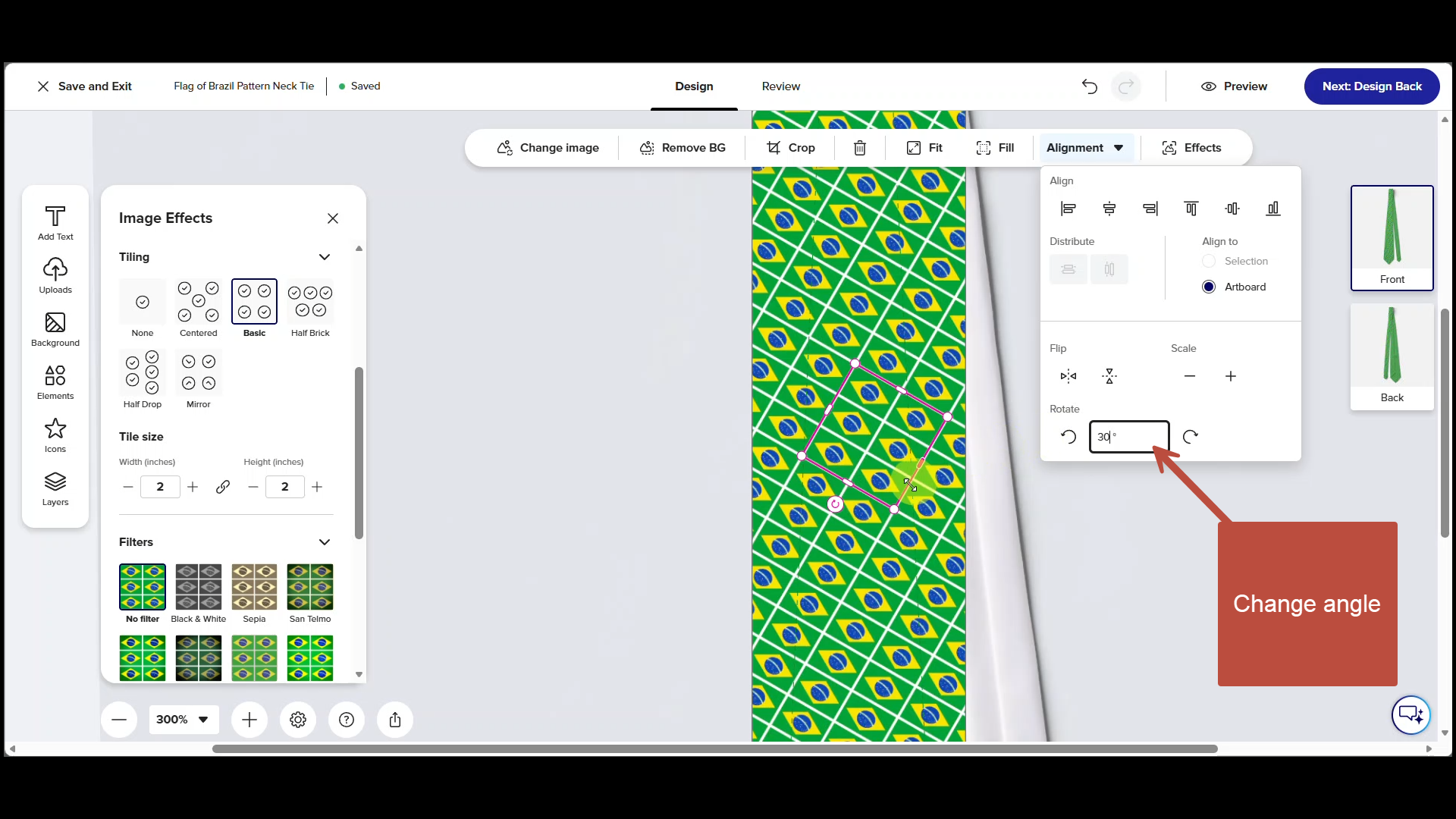
Change angle of the pattern
On the context menu above the artwork, click Alignment and enter -30 in the Rotate box at the bottom of the pop up menu. Note that the pattern on the artboard has shifted and is now angled.
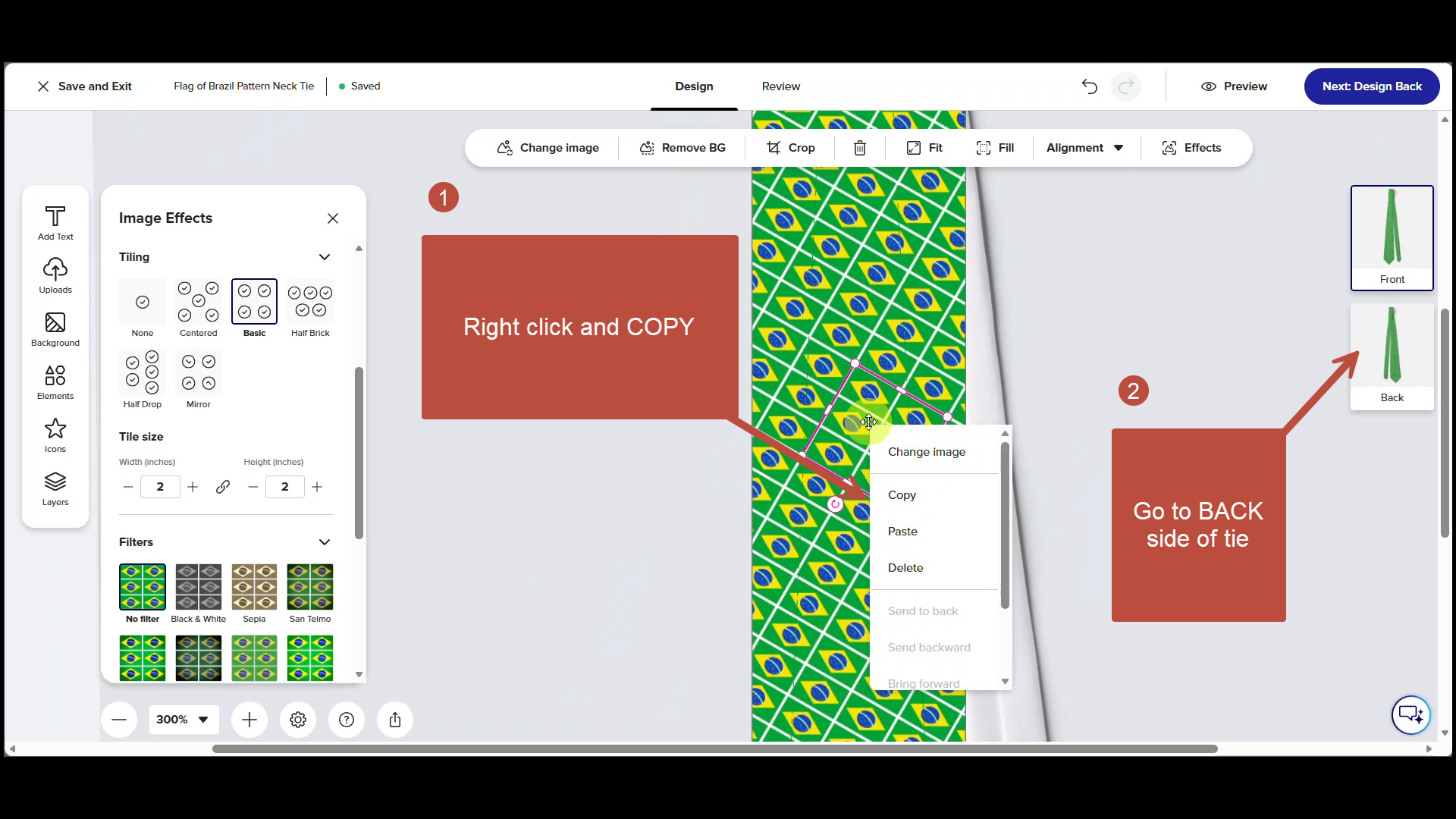
Copy pattern tile and navigate to the backside of the necktie
Right-click On Pattern tile and select COPY. Then,click on the BACK side of the necktie (link ocated on the right side of the screen.)
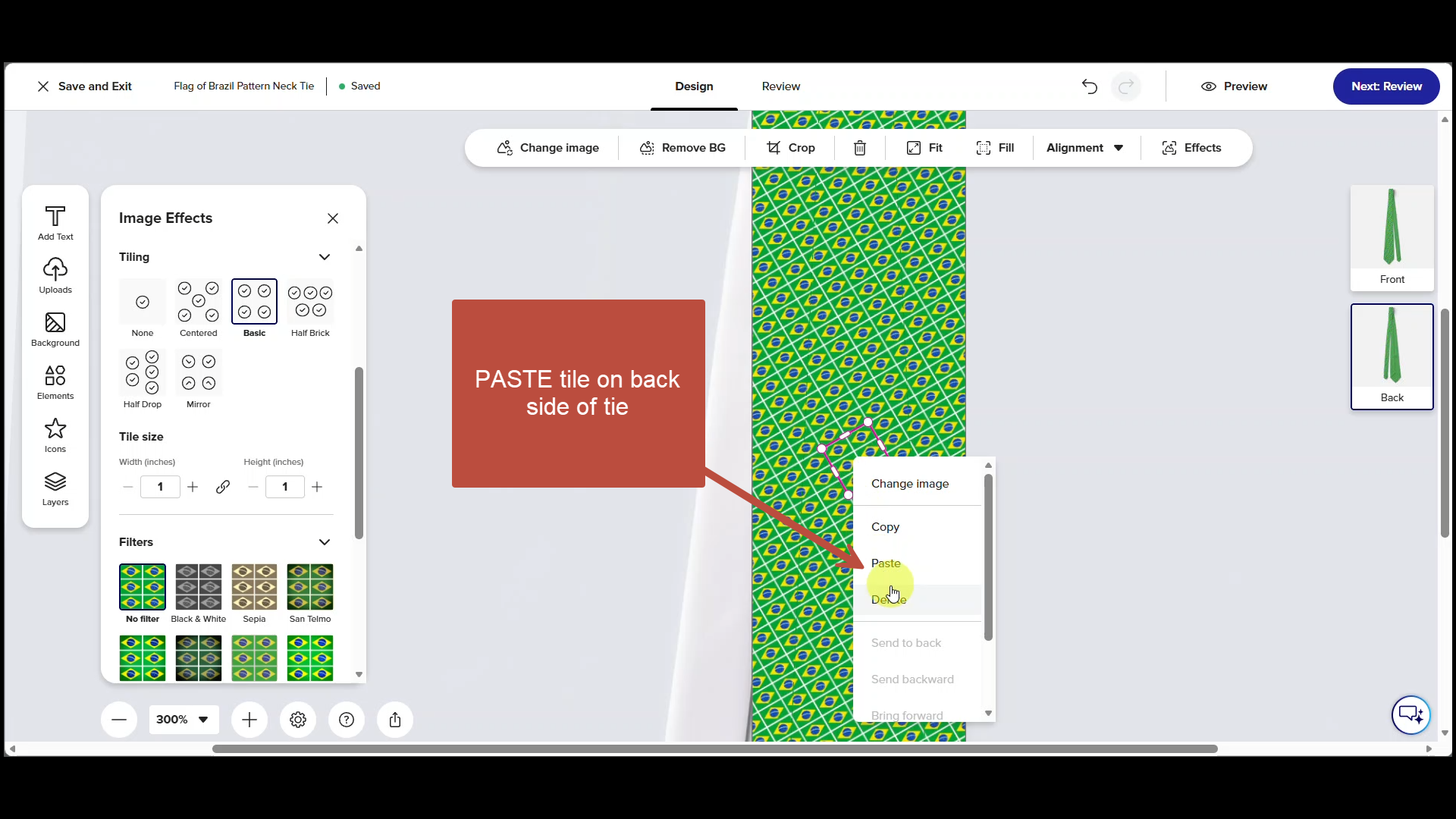
Replace pattern on back of necktie
Select existing pattern tile on back side of neck and right-click DELETE (not shown), then right-click PASTE to place the revised pattern copied from the front of the necktie.
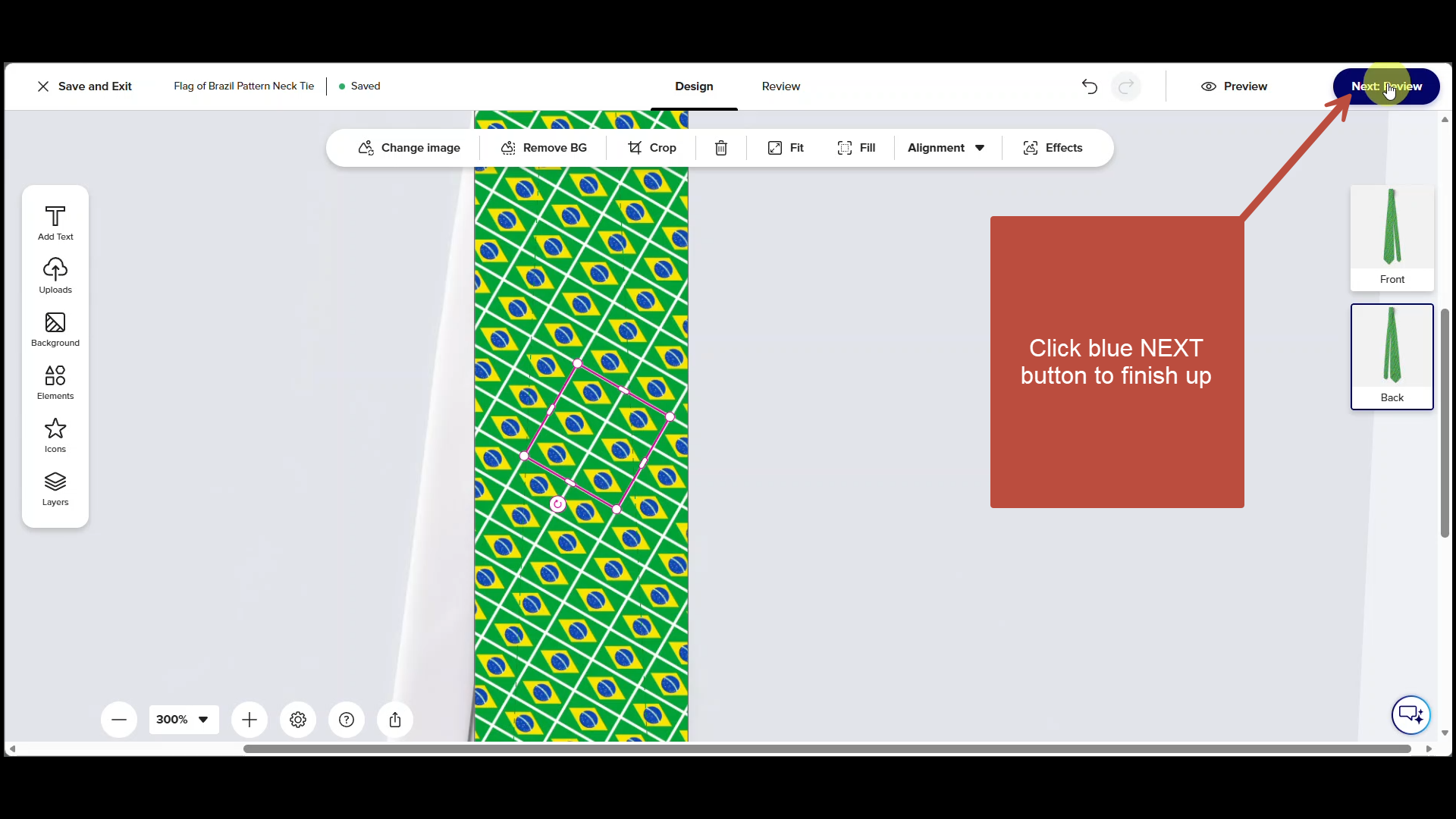
Click blue Next button
Click Blue Done button to Begin final review of your alterations.
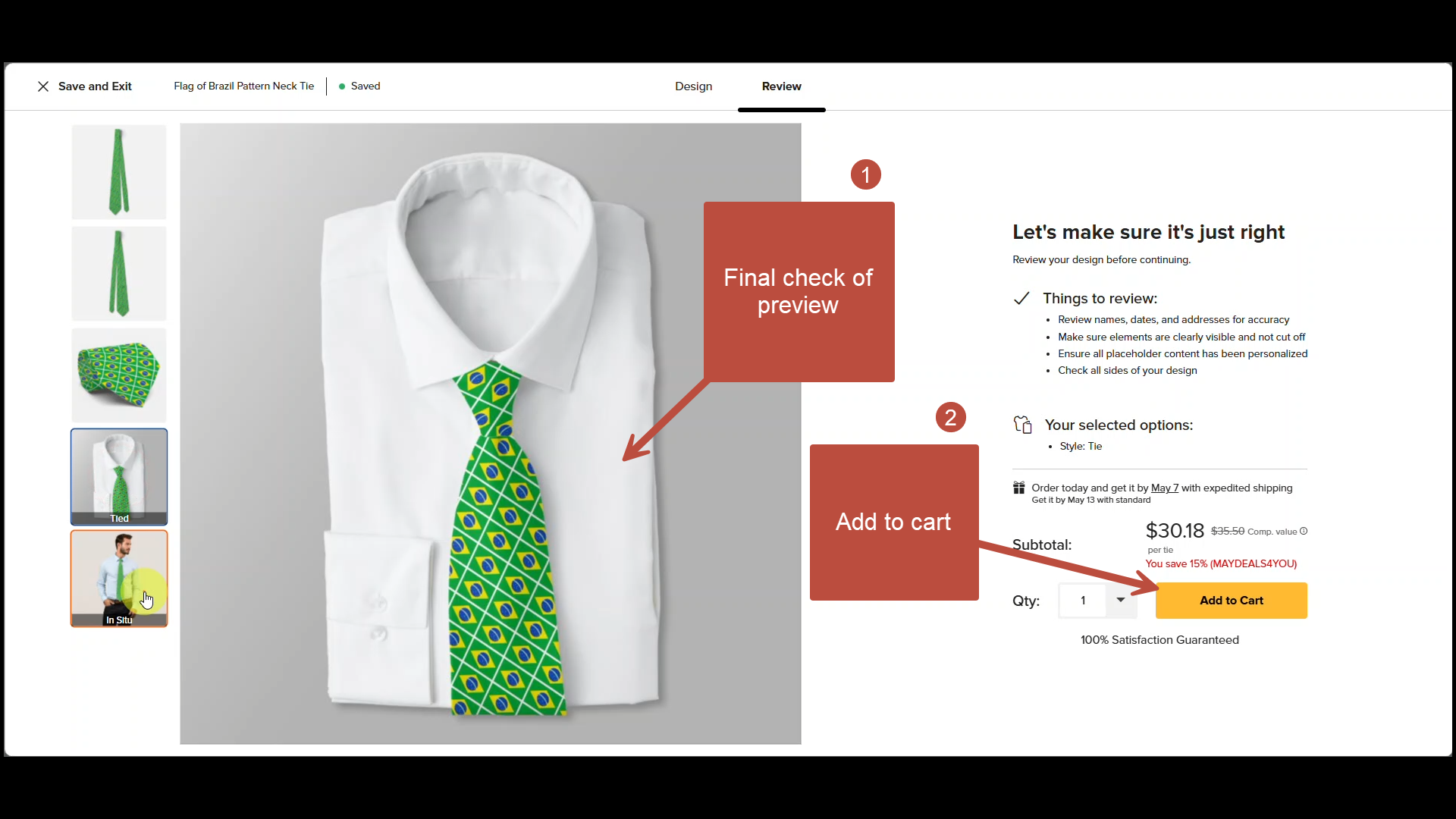
Final review and place order
Check one last time, then if everything looks good, Add to Cart and place your order.
Final tips, downloads and links
That’s it — in just a few clicks, you can resize and rotate the flag pattern on your necktie to get exactly the look you want. Whether you prefer a bold, oversized flag or a subtle diagonal repeat, the Zazzle designer gives you full control over the style.
Quick Tip: If you don’t already have a free Zazzle account, it’s worth creating one before you start customizing. Here’s why:
- Your designs will be saved in case of system interruptions.
- You can work on your tie across multiple sessions without losing progress.
- Sharing your personalized tie online is quick and easy.
- No credit card is required to sign up.
You’ll find the Sign-Up link at the top of the screen the first time you open the Zazzle designer.
Head back to the MyTies.net homepage to browse the full country directory and start personalizing your own tie.
Check out other flag pattern tutorials here.
Download the PDF step-by-step below:
Pin it